> ## Documentation Index
> Fetch the complete documentation index at: https://cometchat-22654f5b-docs-flutter-sdk-mark-as-unread.mintlify.site/llms.txt
> Use this file to discover all available pages before exploring further.
# Call Session
## Overview
This section demonstrates how to start a call session in a React Native application. Previously known as **Direct Calling**.
Before you begin, we strongly recommend you read the [calling setup guide](/sdk/react-native/calling-setup).
If you want to implement a complete calling experience with ringing functionality (incoming/outgoing call UI), follow the [Ringing](/sdk/react-native/default-call) guide first. Once the call is accepted, return here to start the call session.
## Generate Call Token
A call token is required for secure access to a call session. Each token is unique to a specific session and user combination, ensuring that only authorized users can join the call.
You can generate the token just before starting the call, or generate and store it ahead of time based on your use case.
Use the `generateToken()` method to create a call token:
```javascript theme={null}
const loggedInUser = await CometChat.getLoggedinUser();
const userAuthToken = loggedInUser.getAuthToken();
const sessionId = "SESSION_ID"; // Random or from Call object in ringing flow
CometChatCalls.generateToken(sessionId, userAuthToken).then(
(callToken) => {
console.log("Call token generated:", callToken.token);
// Use callToken to start the session
},
(error) => {
console.log("Token generation failed:", error);
}
);
```
```typescript theme={null}
const loggedInUser = await CometChat.getLoggedinUser();
const userAuthToken = loggedInUser.getAuthToken();
const sessionId: string = "SESSION_ID"; // Random or from Call object in ringing flow
CometChatCalls.generateToken(sessionId, userAuthToken).then(
(callToken: GenerateToken) => {
console.log("Call token generated:", callToken.token);
// Use callToken to start the session
},
(error: CometChat.CometChatException) => {
console.log("Token generation failed:", error);
}
);
```
| Parameter | Description |
| --------------- | -------------------------------------------------------------------------------------------------------------------------------------------------------- |
| `sessionId` | The unique random session ID. In case you are using the ringing flow, the session ID is available in the `Call` object. |
| `userAuthToken` | The user auth token is the logged-in user auth token which you can get by calling CometChat Chat SDK method `CometChat.getLoggedinUser().getAuthToken()` |
## Start Call Session
Use the `CometChatCalls.Component` to render the call UI. This component requires a call token (generated in the previous step) and a `CallSettings` object that configures the call UI and behavior.
The `CallSettings` class configures the call UI and behavior. Use `CallSettingsBuilder` to create a `CallSettings` instance.
```javascript theme={null}
const callListener = new CometChatCalls.OngoingCallListener({
onUserJoined: (user) => {
console.log("User joined:", user);
},
onUserLeft: (user) => {
console.log("User left:", user);
},
onUserListUpdated: (userList) => {
console.log("User list updated:", userList);
},
onCallEnded: () => {
console.log("Call ended");
},
onCallEndButtonPressed: () => {
console.log("End call button pressed");
// Handle end call - see End Call Session section
},
onError: (error) => {
console.log("Call error:", error);
},
onAudioModesUpdated: (audioModes) => {
console.log("Audio modes updated:", audioModes);
},
onCallSwitchedToVideo: (event) => {
console.log("Call switched to video:", event);
},
onUserMuted: (event) => {
console.log("User muted:", event);
},
onSessionTimeout: () => {
console.log("Session timed out");
}
});
const callSettings = new CometChatCalls.CallSettingsBuilder()
.enableDefaultLayout(true)
.setIsAudioOnlyCall(false)
.setCallEventListener(callListener)
.build();
// In your render method
return (
);
```
```typescript theme={null}
const callListener = new CometChatCalls.OngoingCallListener({
onUserJoined: (user: CometChat.User) => {
console.log("User joined:", user);
},
onUserLeft: (user: CometChat.User) => {
console.log("User left:", user);
},
onUserListUpdated: (userList: CometChat.User[]) => {
console.log("User list updated:", userList);
},
onCallEnded: () => {
console.log("Call ended");
},
onCallEndButtonPressed: () => {
console.log("End call button pressed");
// Handle end call - see End Call Session section
},
onError: (error: CometChat.CometChatException) => {
console.log("Call error:", error);
},
onAudioModesUpdated: (audioModes: string[]) => {
console.log("Audio modes updated:", audioModes);
},
onCallSwitchedToVideo: (event: any) => {
console.log("Call switched to video:", event);
},
onUserMuted: (event: any) => {
console.log("User muted:", event);
},
onSessionTimeout: () => {
console.log("Session timed out");
}
});
const callSettings = new CometChatCalls.CallSettingsBuilder()
.enableDefaultLayout(true)
.setIsAudioOnlyCall(false)
.setCallEventListener(callListener)
.build();
// In your render method
return (
);
```
| Parameter | Description |
| -------------- | -------------------------------------------------------------------- |
| `callToken` | The `GenerateToken` object received from `generateToken()` onSuccess |
| `callSettings` | Object of `CallSettings` class configured via `CallSettingsBuilder` |
### Call Settings
Configure the call experience using the following `CallSettingsBuilder` methods:
| Method | Description |
| --------------------------------------------------------- | --------------------------------------------------------------------------------------------------------------------------------------------------------------------------------------------------- |
| `enableDefaultLayout(boolean)` | Enables or disables the default call UI layout with built-in controls. `true` shows the default layout with end call, mute, video toggle buttons. `false` hides the button layout. Default: `true` |
| `setIsAudioOnlyCall(boolean)` | Sets whether the call is audio-only or audio-video. `true` for audio-only, `false` for audio-video. Default: `false` |
| `setCallEventListener(OngoingCallListener)` | Sets the listener to receive call events. See [Call Listeners](#call-listeners) for available callbacks. |
| `setMode(string)` | Sets the call UI layout mode. Available: `CometChat.CALL_MODE.DEFAULT` (grid), `CometChat.CALL_MODE.SPOTLIGHT` (active speaker), `CometChat.CALL_MODE.SINGLE` (one participant). Default: `DEFAULT` |
| `setAvatarMode(string)` | Sets how avatars are displayed when video is off. Available: `circle`, `square`, `fullscreen`. Default: `circle` |
| `setDefaultAudioMode(string)` | Sets the initial audio output device. Available: `SPEAKER`, `EARPIECE`, `BLUETOOTH`, `HEADPHONES` |
| `startWithAudioMuted(boolean)` | Starts the call with the microphone muted. Default: `false` |
| `startWithVideoMuted(boolean)` | Starts the call with the camera turned off. Default: `false` |
| `showEndCallButton(boolean)` | Shows or hides the end call button in the default layout. Default: `true` |
| `showSwitchCameraButton(boolean)` | Shows or hides the switch camera button (front/back). Default: `true` |
| `showMuteAudioButton(boolean)` | Shows or hides the mute audio button. Default: `true` |
| `showPauseVideoButton(boolean)` | Shows or hides the pause video button. Default: `true` |
| `showAudioModeButton(boolean)` | Shows or hides the audio mode selection button. Default: `true` |
| `showSwitchToVideoCallButton(boolean)` | Shows or hides the button to upgrade an audio call to video. Default: `true` |
| `setMainVideoContainerSetting(MainVideoContainerSetting)` | Customizes the main video container. See [Video View Customization](/sdk/react-native/video-view-customisation). |
| `enableVideoTileClick(boolean)` | Enables or disables click interactions on video tiles in Spotlight mode. Default: `true` |
| `enableVideoTileDrag(boolean)` | Enables or disables drag functionality for video tiles in Spotlight mode. Default: `true` |
| `setIdleTimeoutPeriod(number)` | Sets idle timeout in seconds. Warning appears 60 seconds before auto-termination. Default: `180` seconds. *v4.2.0+* |
## Call Listeners
The `OngoingCallListener` provides real-time callbacks for call session events, including participant changes, call state updates, and error conditions.
You can register listeners in two ways:
1. **Via CallSettingsBuilder:** Use `.setCallEventListener(listener)` when building call settings
2. **Via addCallEventListener:** Use `CometChatCalls.addCallEventListener(listenerId, listener)` to add multiple listeners
Each listener requires a unique `listenerId` string. This ID is used to:
* **Prevent duplicate registrations** — Re-registering with the same ID replaces the existing listener
* **Enable targeted removal** — Remove specific listeners without affecting others
```javascript theme={null}
useEffect(() => {
const listenerId = "UNIQUE_LISTENER_ID";
CometChatCalls.addCallEventListener(listenerId, {
onUserJoined: (user) => {
console.log("User joined:", user);
},
onUserLeft: (user) => {
console.log("User left:", user);
},
onUserListUpdated: (userList) => {
console.log("User list updated:", userList);
},
onCallEnded: () => {
console.log("Call ended");
},
onCallEndButtonPressed: () => {
console.log("End call button pressed");
},
onError: (error) => {
console.log("Call error:", error);
},
onAudioModesUpdated: (audioModes) => {
console.log("Audio modes updated:", audioModes);
},
onCallSwitchedToVideo: (event) => {
console.log("Call switched to video:", event);
},
onUserMuted: (event) => {
console.log("User muted:", event);
},
onSessionTimeout: () => {
console.log("Session timed out");
}
});
// Cleanup on unmount
return () => CometChatCalls.removeCallEventListener(listenerId);
}, []);
```
```typescript theme={null}
useEffect(() => {
const listenerId: string = "UNIQUE_LISTENER_ID";
CometChatCalls.addCallEventListener(listenerId, {
onUserJoined: (user: CometChat.User) => {
console.log("User joined:", user);
},
onUserLeft: (user: CometChat.User) => {
console.log("User left:", user);
},
onUserListUpdated: (userList: CometChat.User[]) => {
console.log("User list updated:", userList);
},
onCallEnded: () => {
console.log("Call ended");
},
onCallEndButtonPressed: () => {
console.log("End call button pressed");
},
onError: (error: CometChat.CometChatException) => {
console.log("Call error:", error);
},
onAudioModesUpdated: (audioModes: string[]) => {
console.log("Audio modes updated:", audioModes);
},
onCallSwitchedToVideo: (event: any) => {
console.log("Call switched to video:", event);
},
onUserMuted: (event: any) => {
console.log("User muted:", event);
},
onSessionTimeout: () => {
console.log("Session timed out");
}
});
// Cleanup on unmount
return () => CometChatCalls.removeCallEventListener(listenerId);
}, []);
```
### Events
| Event | Description |
| --------------------------------- | ------------------------------------------------------------------------------------------------------------------------------------------------------- |
| `onCallEnded()` | Invoked when the call session terminates for a 1:1 call. Both participants receive this callback. Only fires for calls with exactly 2 participants. |
| `onSessionTimeout()` | Invoked when the call is auto-terminated due to inactivity (default: 180 seconds). Warning appears 60 seconds before. *v4.2.0+* |
| `onCallEndButtonPressed()` | Invoked when the local user taps the end call button. For ringing flow, call `CometChat.endCall()`. For standalone, call `CometChatCalls.endSession()`. |
| `onUserJoined(user)` | Invoked when a remote participant joins. The `user` contains UID, name, and avatar. |
| `onUserLeft(user)` | Invoked when a remote participant leaves the call session. |
| `onUserListUpdated(userList)` | Invoked whenever the participant list changes (join or leave events). |
| `onAudioModesUpdated(audioModes)` | Invoked when available audio devices change (e.g., Bluetooth connected). |
| `onCallSwitchedToVideo(event)` | Invoked when an audio call is upgraded to a video call. |
| `onUserMuted(event)` | Invoked when a participant's mute state changes. |
| `onScreenShareStarted()` | Invoked when the local user starts sharing a screen. |
| `onScreenShareStopped()` | Invoked when the local user stops sharing a screen. |
| `onError(error)` | Invoked when an error occurs during the call session. |
## End Call Session
Ending a call session properly is essential to release media resources (camera, microphone, network connections) and update call state across all participants. The termination process differs based on whether you're using the Ringing flow or Session Only flow.
### Ringing Flow
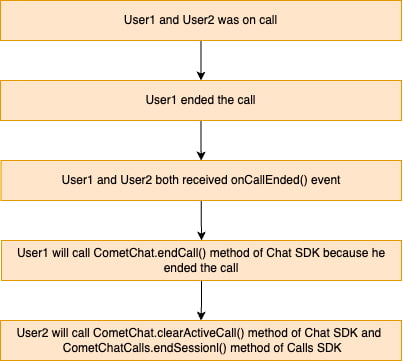
When using the [Ringing](/sdk/react-native/default-call) flow, you must coordinate between the CometChat Chat SDK and the Calls SDK to properly terminate the call and notify all participants.
The Ringing flow requires calling methods from both the Chat SDK (`CometChat.endCall()`) and the Calls SDK (`CometChatCalls.endSession()`) to ensure proper call termination and participant notification.
 **User who initiates the end call:**
When the user presses the end call button in the UI, the `onCallEndButtonPressed()` callback is triggered. You must call `CometChat.endCall()` inside this callback to properly terminate the call and notify other participants. On success, call `CometChat.clearActiveCall()` and `CometChatCalls.endSession()` to release resources.
```javascript theme={null}
onCallEndButtonPressed: () => {
CometChat.endCall(sessionId).then(
(call) => {
console.log("Call ended successfully");
CometChat.clearActiveCall();
CometChatCalls.endSession();
// Close the calling screen
},
(error) => {
console.log("End call failed:", error);
}
);
}
```
```typescript theme={null}
onCallEndButtonPressed: () => {
CometChat.endCall(sessionId).then(
(call: CometChat.Call) => {
console.log("Call ended successfully");
CometChat.clearActiveCall();
CometChatCalls.endSession();
// Close the calling screen
},
(error: CometChat.CometChatException) => {
console.log("End call failed:", error);
}
);
}
```
**Remote participant** (receives the `onCallEnded()` callback):
Call `CometChat.clearActiveCall()` to clear the local call state, then call `CometChatCalls.endSession()` to release media resources.
```javascript theme={null}
onCallEnded: () => {
CometChat.clearActiveCall();
CometChatCalls.endSession();
// Close the calling screen
}
```
```typescript theme={null}
onCallEnded: () => {
CometChat.clearActiveCall();
CometChatCalls.endSession();
// Close the calling screen
}
```
### Session Only Flow
When using the Session Only flow (direct call without ringing), you only need to call the Calls SDK method to end the session. There's no need to notify the Chat SDK since no call signaling was involved.
Call `CometChatCalls.endSession()` in the `onCallEndButtonPressed()` callback to release all media resources and disconnect from the call session.
```javascript theme={null}
onCallEndButtonPressed: () => {
CometChatCalls.endSession();
// Close the calling screen
}
```
```typescript theme={null}
onCallEndButtonPressed: () => {
CometChatCalls.endSession();
// Close the calling screen
}
```
## Methods
These methods are available for performing custom actions during an active call session. Use them to build custom UI controls or implement specific behaviors based on your use case.
These methods can only be called when a call session is active.
### Switch Camera
Toggles between the front and rear camera during a video call. Useful for allowing users to switch their camera view without leaving the call.
```javascript theme={null}
CometChatCalls.switchCamera();
```
```typescript theme={null}
CometChatCalls.switchCamera();
```
### Mute Audio
Controls the local audio stream transmission. When muted, other participants cannot hear the local user.
* `true` — Mutes the microphone, stops transmitting audio
* `false` — Unmutes the microphone, resumes audio transmission
```javascript theme={null}
CometChatCalls.muteAudio(true);
```
```typescript theme={null}
CometChatCalls.muteAudio(true);
```
### Pause Video
Controls the local video stream transmission. When paused, other participants see a frozen frame or avatar instead of live video.
* `true` — Pauses the camera, stops transmitting video
* `false` — Resumes the camera, continues video transmission
```javascript theme={null}
CometChatCalls.pauseVideo(true);
```
```typescript theme={null}
CometChatCalls.pauseVideo(true);
```
### Set Audio Mode
Routes the audio output to a specific device. Use this to let users choose between speaker, earpiece, or connected audio devices.
**Available modes:**
* `CometChat.AUDIO_MODE.SPEAKER` — Device speaker (loudspeaker)
* `CometChat.AUDIO_MODE.EARPIECE` — Phone earpiece
* `CometChat.AUDIO_MODE.BLUETOOTH` — Connected Bluetooth device
* `CometChat.AUDIO_MODE.HEADPHONES` — Wired headphones
```javascript theme={null}
CometChatCalls.setAudioMode(CometChat.AUDIO_MODE.EARPIECE);
```
```typescript theme={null}
CometChatCalls.setAudioMode(CometChat.AUDIO_MODE.EARPIECE);
```
### Switch To Video Call
Upgrades an ongoing audio call to a video call. This enables the camera and starts transmitting video to other participants. The remote participant receives the `onCallSwitchedToVideo()` callback.
```javascript theme={null}
CometChatCalls.switchToVideoCall();
```
```typescript theme={null}
CometChatCalls.switchToVideoCall();
```
### Get Audio Output Modes
Returns the list of available audio output devices. Use this to display audio options to the user and then set the selected mode using `setAudioMode()`.
```javascript theme={null}
CometChatCalls.getAudioOutputModes().then(
(modes) => {
console.log("Available audio modes:", modes);
// Each mode has: mode (string) and isSelected (boolean)
},
(error) => {
console.log("Failed to get audio modes:", error);
}
);
```
```typescript theme={null}
CometChatCalls.getAudioOutputModes().then(
(modes: CometChat.AudioMode[]) => {
console.log("Available audio modes:", modes);
// Each mode has: mode (string) and isSelected (boolean)
},
(error: CometChat.CometChatException) => {
console.log("Failed to get audio modes:", error);
}
);
```
### End Call
Terminates the current call session and releases all media resources (camera, microphone, network connections). After calling this method, the call view should be closed.
```javascript theme={null}
CometChatCalls.endSession();
```
```typescript theme={null}
CometChatCalls.endSession();
```
**User who initiates the end call:**
When the user presses the end call button in the UI, the `onCallEndButtonPressed()` callback is triggered. You must call `CometChat.endCall()` inside this callback to properly terminate the call and notify other participants. On success, call `CometChat.clearActiveCall()` and `CometChatCalls.endSession()` to release resources.
```javascript theme={null}
onCallEndButtonPressed: () => {
CometChat.endCall(sessionId).then(
(call) => {
console.log("Call ended successfully");
CometChat.clearActiveCall();
CometChatCalls.endSession();
// Close the calling screen
},
(error) => {
console.log("End call failed:", error);
}
);
}
```
```typescript theme={null}
onCallEndButtonPressed: () => {
CometChat.endCall(sessionId).then(
(call: CometChat.Call) => {
console.log("Call ended successfully");
CometChat.clearActiveCall();
CometChatCalls.endSession();
// Close the calling screen
},
(error: CometChat.CometChatException) => {
console.log("End call failed:", error);
}
);
}
```
**Remote participant** (receives the `onCallEnded()` callback):
Call `CometChat.clearActiveCall()` to clear the local call state, then call `CometChatCalls.endSession()` to release media resources.
```javascript theme={null}
onCallEnded: () => {
CometChat.clearActiveCall();
CometChatCalls.endSession();
// Close the calling screen
}
```
```typescript theme={null}
onCallEnded: () => {
CometChat.clearActiveCall();
CometChatCalls.endSession();
// Close the calling screen
}
```
### Session Only Flow
When using the Session Only flow (direct call without ringing), you only need to call the Calls SDK method to end the session. There's no need to notify the Chat SDK since no call signaling was involved.
Call `CometChatCalls.endSession()` in the `onCallEndButtonPressed()` callback to release all media resources and disconnect from the call session.
```javascript theme={null}
onCallEndButtonPressed: () => {
CometChatCalls.endSession();
// Close the calling screen
}
```
```typescript theme={null}
onCallEndButtonPressed: () => {
CometChatCalls.endSession();
// Close the calling screen
}
```
## Methods
These methods are available for performing custom actions during an active call session. Use them to build custom UI controls or implement specific behaviors based on your use case.
These methods can only be called when a call session is active.
### Switch Camera
Toggles between the front and rear camera during a video call. Useful for allowing users to switch their camera view without leaving the call.
```javascript theme={null}
CometChatCalls.switchCamera();
```
```typescript theme={null}
CometChatCalls.switchCamera();
```
### Mute Audio
Controls the local audio stream transmission. When muted, other participants cannot hear the local user.
* `true` — Mutes the microphone, stops transmitting audio
* `false` — Unmutes the microphone, resumes audio transmission
```javascript theme={null}
CometChatCalls.muteAudio(true);
```
```typescript theme={null}
CometChatCalls.muteAudio(true);
```
### Pause Video
Controls the local video stream transmission. When paused, other participants see a frozen frame or avatar instead of live video.
* `true` — Pauses the camera, stops transmitting video
* `false` — Resumes the camera, continues video transmission
```javascript theme={null}
CometChatCalls.pauseVideo(true);
```
```typescript theme={null}
CometChatCalls.pauseVideo(true);
```
### Set Audio Mode
Routes the audio output to a specific device. Use this to let users choose between speaker, earpiece, or connected audio devices.
**Available modes:**
* `CometChat.AUDIO_MODE.SPEAKER` — Device speaker (loudspeaker)
* `CometChat.AUDIO_MODE.EARPIECE` — Phone earpiece
* `CometChat.AUDIO_MODE.BLUETOOTH` — Connected Bluetooth device
* `CometChat.AUDIO_MODE.HEADPHONES` — Wired headphones
```javascript theme={null}
CometChatCalls.setAudioMode(CometChat.AUDIO_MODE.EARPIECE);
```
```typescript theme={null}
CometChatCalls.setAudioMode(CometChat.AUDIO_MODE.EARPIECE);
```
### Switch To Video Call
Upgrades an ongoing audio call to a video call. This enables the camera and starts transmitting video to other participants. The remote participant receives the `onCallSwitchedToVideo()` callback.
```javascript theme={null}
CometChatCalls.switchToVideoCall();
```
```typescript theme={null}
CometChatCalls.switchToVideoCall();
```
### Get Audio Output Modes
Returns the list of available audio output devices. Use this to display audio options to the user and then set the selected mode using `setAudioMode()`.
```javascript theme={null}
CometChatCalls.getAudioOutputModes().then(
(modes) => {
console.log("Available audio modes:", modes);
// Each mode has: mode (string) and isSelected (boolean)
},
(error) => {
console.log("Failed to get audio modes:", error);
}
);
```
```typescript theme={null}
CometChatCalls.getAudioOutputModes().then(
(modes: CometChat.AudioMode[]) => {
console.log("Available audio modes:", modes);
// Each mode has: mode (string) and isSelected (boolean)
},
(error: CometChat.CometChatException) => {
console.log("Failed to get audio modes:", error);
}
);
```
### End Call
Terminates the current call session and releases all media resources (camera, microphone, network connections). After calling this method, the call view should be closed.
```javascript theme={null}
CometChatCalls.endSession();
```
```typescript theme={null}
CometChatCalls.endSession();
```